
Voices
Every narrated scene is spoken by a voice. Use one of the presets, clone a real voice from a recording, bring in voices from a provider you already pay for, or let an avatar narrate with its own voice.
Choosing a voice
Section titled “Choosing a voice”Set the voice per scene, so an intro and a sign-off can share the same voice — or differ. You can use:
- One of the built-in voices.
- A voice you’ve cloned (see below).
- An avatar’s own voice, when the scene has a talking presenter.
Your voice library — the Voices page
Section titled “Your voice library — the Voices page”Open Voices to see everything available to you.
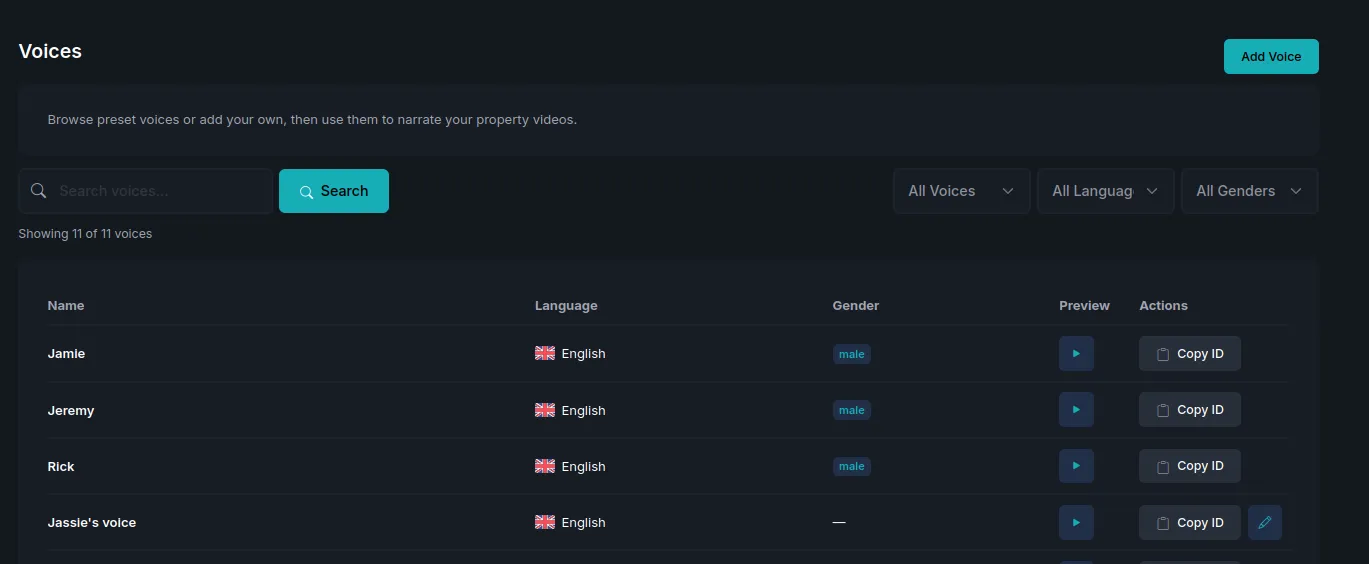
Filter by voice type, language or gender, and press preview to hear any voice before you use it. Copy ID copies a voice’s identifier, which is handy when someone is helping you with a support question.
Voices you created show an edit action; preset voices do not. Voices created alongside an avatar appear here too, named after the avatar — see Avatars.
Add a voice
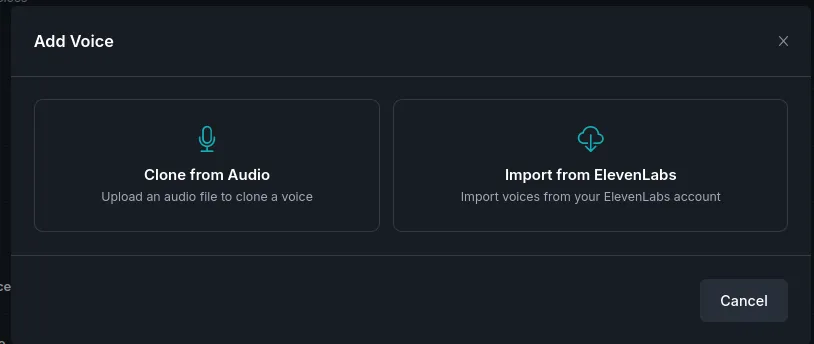
Section titled “Add a voice”Press Add Voice and choose Clone from Audio or Import from ElevenLabs.
Clone a voice from audio
Section titled “Clone a voice from audio”-
Choose Clone from Audio.
-
Fill in the form.
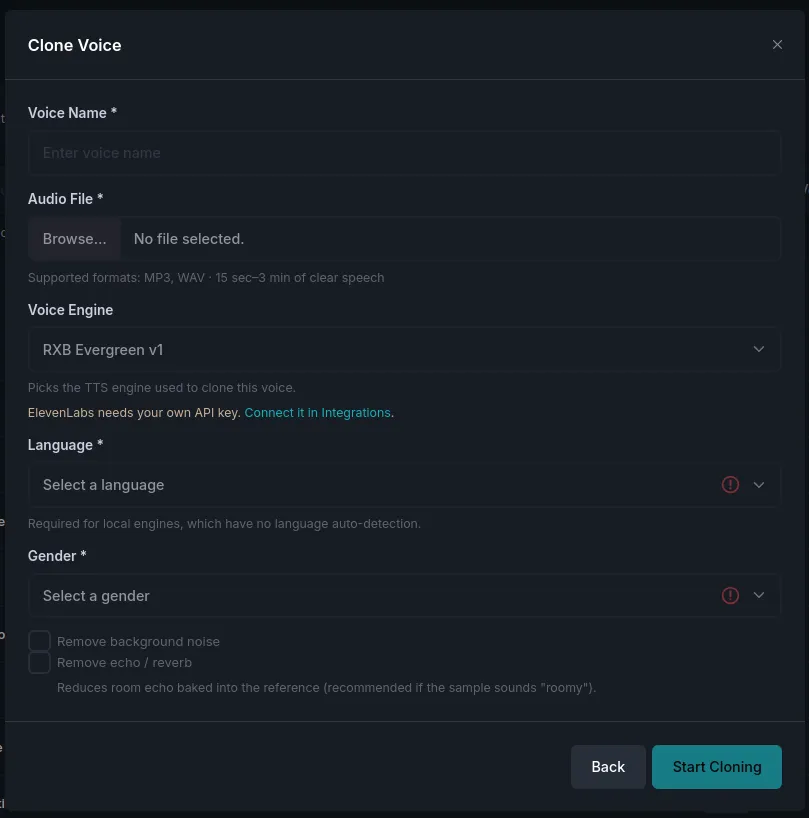
Field What it does Voice Name What the voice is called wherever you pick narration. Audio File MP3 or WAV, between 15 seconds and 3 minutes of clear speech. Voice Engine Which engine clones the voice. ElevenLabs requires your own API key, connected under Settings → Integrations. Language Required — the language spoken in your sample. Gender Used for filtering and matching. -
Tick the clean-up options if your sample needs them:
- Remove background noise — for traffic, hum or room tone.
- Remove echo / reverb — for a sample recorded in a hard-walled or echoey room.
-
Press Start Cloning.
Import voices from ElevenLabs
Section titled “Import voices from ElevenLabs”If you already have voices in an ElevenLabs account, import them instead of recreating them. This uses your own ElevenLabs account and API key, so that usage is billed by ElevenLabs, not by us.
Connect your API key first, under Settings → Integrations.
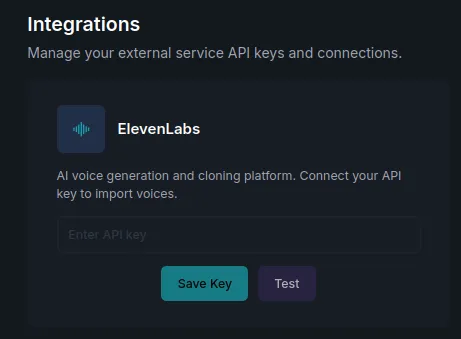
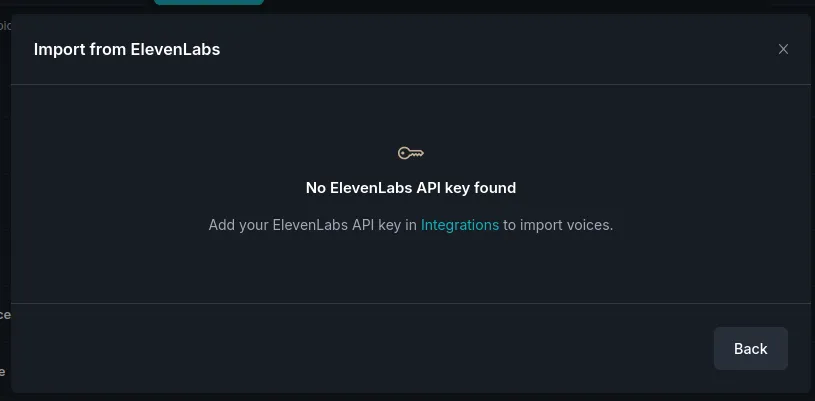
Paste the key, press Save Key, then Test to confirm it works. Without a key the Import from ElevenLabs dialog just points you back to Integrations.
Captions
Section titled “Captions”Captions (subtitles) make videos accessible and lift watch-time on social feeds.
- Toggle captions on for your video.
- Roxybit sizes and positions them to fit the video’s orientation, including portrait (9:16) where lines are kept inside the visible frame.
- Fine-tune caption text, font, and position for any scene in the editor.
- Warm, measured delivery suits property tours — avoid rushed pacing.
- Keep one voice per video unless an avatar deliberately introduces a second speaker.
In this section
Section titled “In this section”- Voiceovers in the Studio — fine control over narration in the editor.
- Avatars — presenters that come with their own voice.
- Voice pricing & limits.
Clone your own voice
Section titled “Clone your own voice”Create a custom voice from a short sample and use it across your videos — see Clone a voice for the steps, the de-reverb option, and pricing.