
Avatars
An avatar is a digital presenter who speaks your narration to camera. Use a ready-made one, or create your own from a video recording or a photo.
The Characters page
Section titled “The Characters page”Open Characters (digital avatars) to browse what you have and create more.
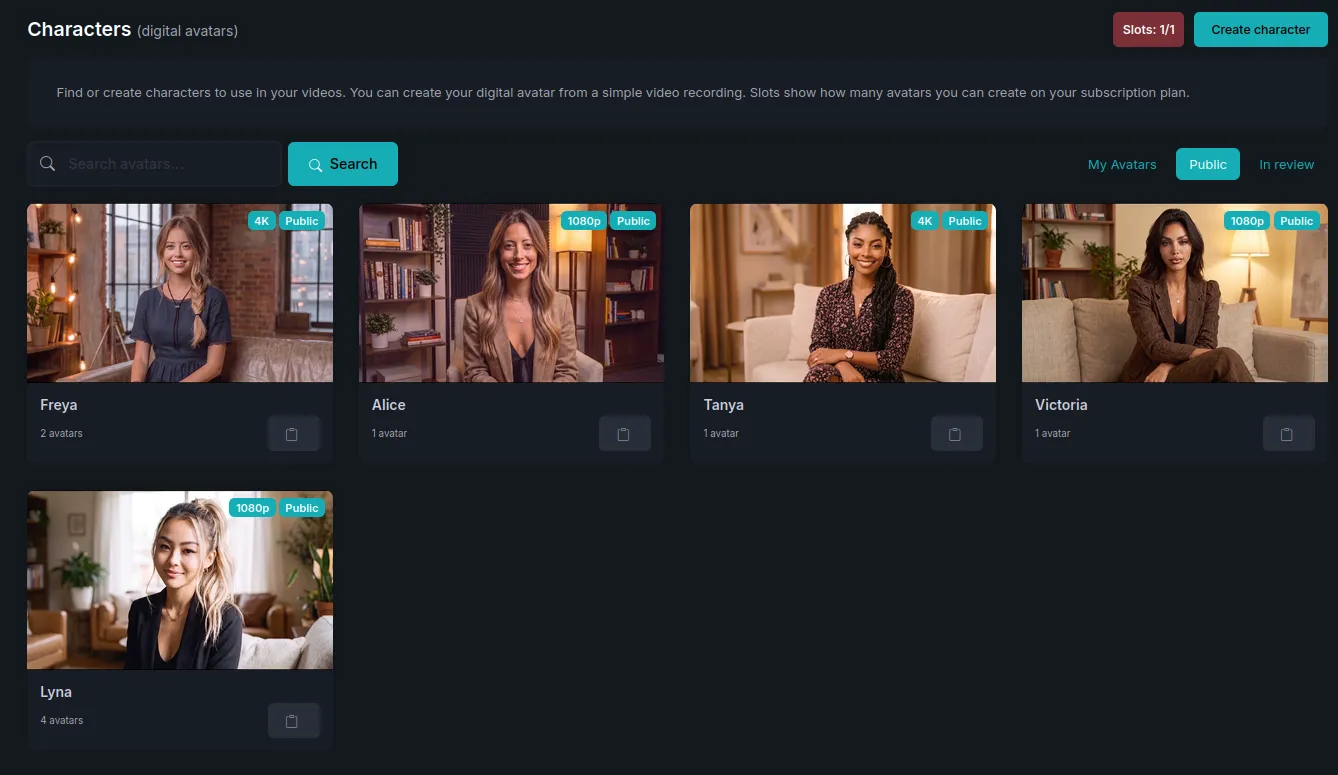
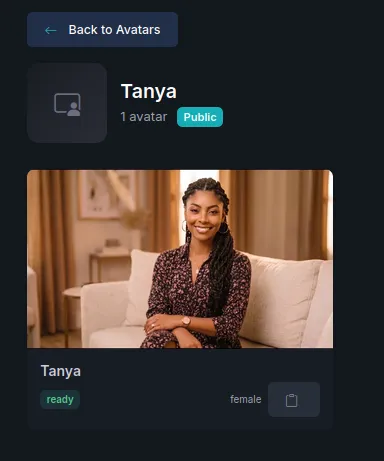
Each card is a character — a person — and holds one or more avatars, which are the individual looks for that person. A character with “2 avatars” gives you two versions of the same presenter to choose between.
Open a character to see its looks.

| Tab | What’s in it |
|---|---|
| My Avatars | Avatars you created. |
| Public | Ready-made avatars available to everyone — nothing to create, just use them. |
| In review | Yours that are still being checked. They become usable once approved. |
Slots cap how many avatars you can have, based on your plan — the counter sits at the top of the page, for example Slots: 1/1.
Avatar detail
Section titled “Avatar detail”Open an avatar to see everything about it: its status, gender, language, when it was created, and whether it is private or public.
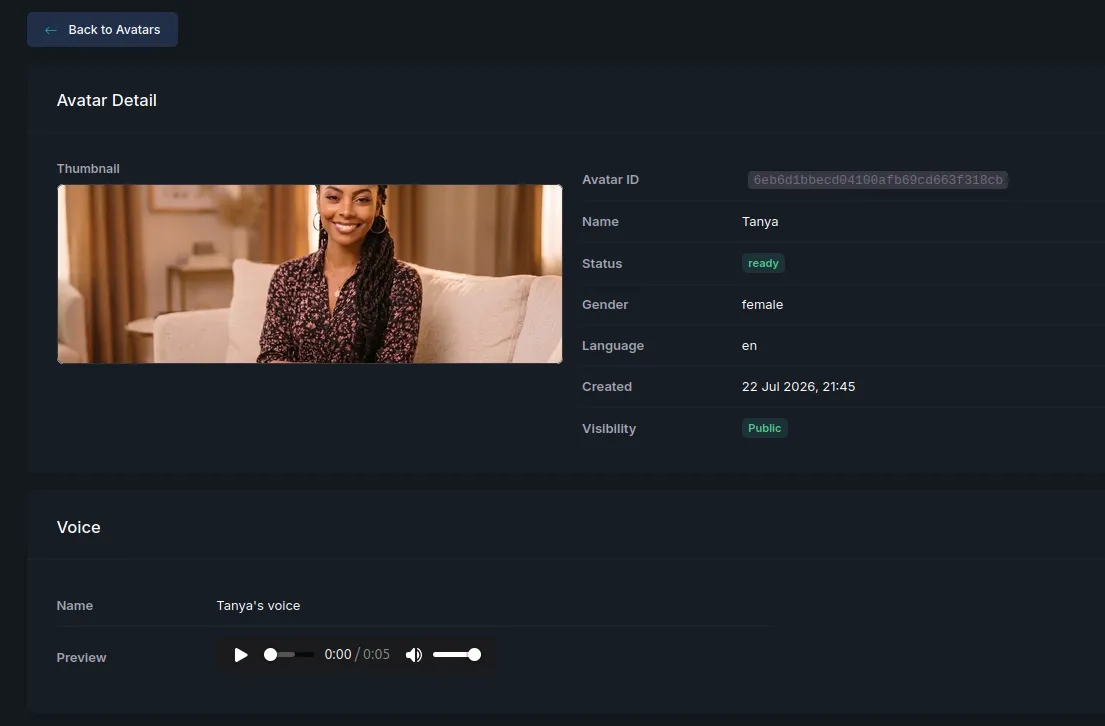
Every avatar has its own voice, named after it — Tanya’s avatar comes with Tanya’s voice. Press play to hear it. That voice is also available on the Voices page, so you can use it for narration even in scenes where the avatar does not appear.
Create an avatar
Section titled “Create an avatar”Press Create character and choose how to make it:
- From Video — upload a recording of a real person. Clones both their appearance and their voice.
- From Photo — generate a character from a description, or upload a photo you already have.
Next steps
Section titled “Next steps”- Create from a video — the most lifelike result.
- Create from a photo — when you have no footage.
- Add an avatar in the Studio — put one into a video.
Framing & voice
Section titled “Framing & voice”Choose how an avatar is framed (Normal / Circle / Square / Full), keep the face centered in portrait videos, and set its voice — see Frame shapes & centering.