
Create an avatar from a video
Uploading a video gives the most lifelike result: it clones both the person’s appearance and their voice, so the avatar looks and sounds like them.
Before you start
Section titled “Before you start”- A video of one person talking to camera, as MP4, MOV, WebM or AVI.
- A free avatar slot — see Slots.
-
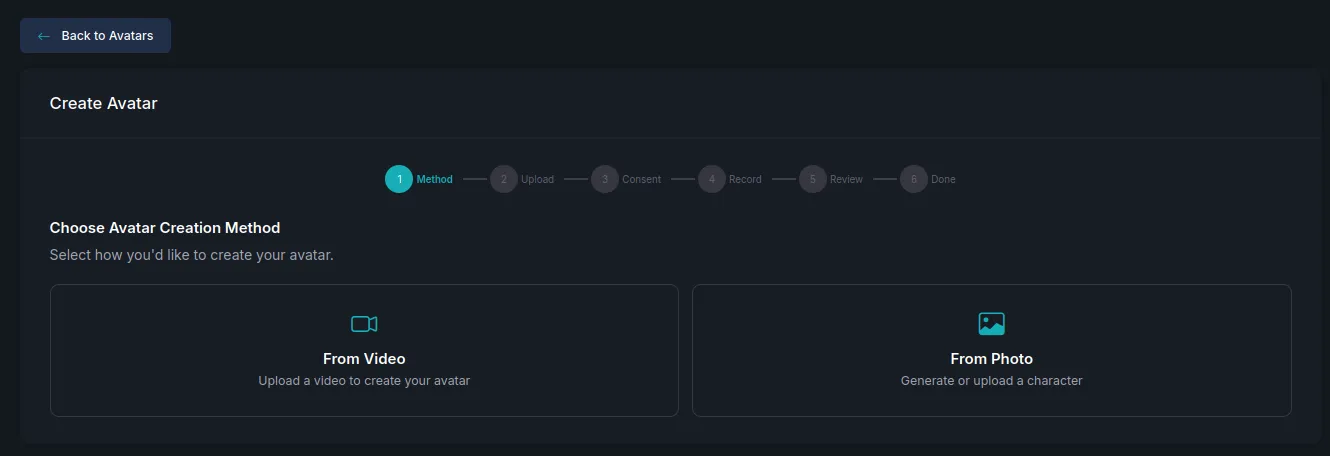
On Characters, press Create character, then choose From Video.
-
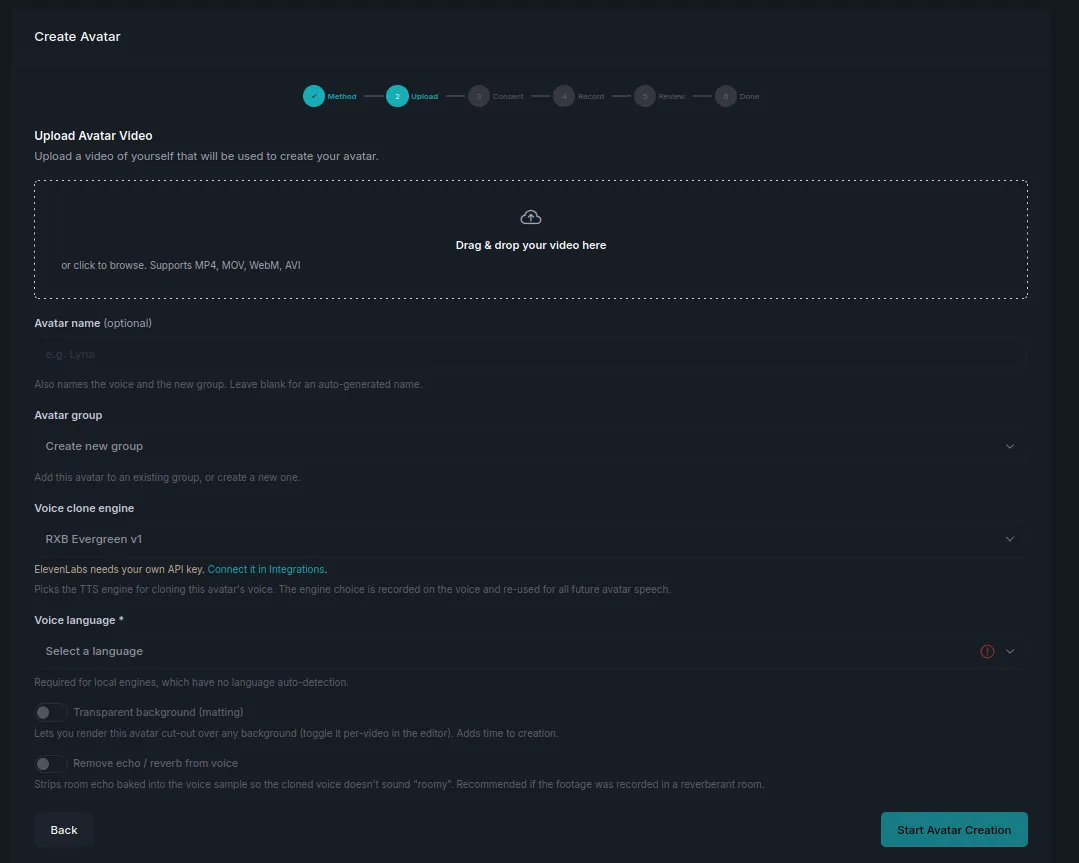
Drag your video onto the upload area, or click to browse.
-
Fill in the details:
Field What it does Avatar name Optional. Names the avatar, its voice and its new group at once. Leave blank for an automatic name. Avatar group Adds this avatar to an existing character, or starts a new one. Use an existing group when it is the same person in a different outfit or setting. Voice clone engine Which engine clones the voice. The choice is stored on the voice and reused for all of that avatar’s future speech. ElevenLabs requires your own API key — connect it under Settings → Integrations. Voice language Required. The language spoken in your recording. -
Set the two clean-up options if they apply:
- Transparent background (matting) — lets you place the avatar over any background in the editor, instead of the room it was filmed in. It adds time to creation, so turn it on only if you plan to composite the avatar.
- Remove echo / reverb from voice — strips room echo from the voice sample so the clone does not sound “roomy”. Worth using if the room had hard walls or was at all echoey.
-
Press Start Avatar Creation, then follow the Consent, Record and Review steps the wizard shows you.
What you’ll see
Section titled “What you’ll see”The avatar appears under In review while it is checked, then moves to My Avatars with a ready badge once approved. Its voice is created at the same time, named after the avatar, and shows up on the Voices page.
Next steps
Section titled “Next steps”- Add an avatar in the Studio — put your new presenter in a video.
- Create from a photo — when you have no footage to work from.
- Voices — use the avatar’s voice on its own.