
Lyrics
A track can be instrumental or sung. Turn on lyrics when you want words — write them yourself, or describe what the song is about and have them written for you.
Before you start
Section titled “Before you start”- Start a track on Music → Create. Lyrics are part of the brief, so add them before you generate.
Turn lyrics on
Section titled “Turn lyrics on”In Settings, switch on Add lyrics. A Lyrics box appears, along with Vocal language.
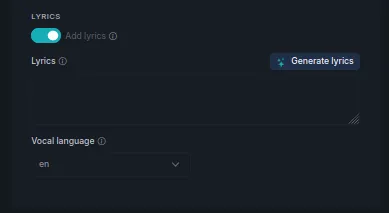
If you already have words, paste them straight in and skip to Vocal language.
Generate lyrics
Section titled “Generate lyrics”-
Press Generate lyrics.
-
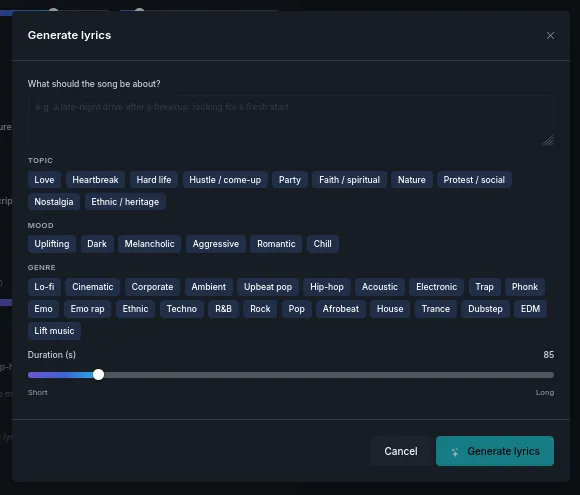
Describe what the song should be about — for example, a late-night drive after a breakup, looking for a fresh start. Add Topic, Mood and Genre chips to steer the writing, and set Duration (s) so the lyric length suits the track.
-
Press Generate lyrics in the dialog.
-
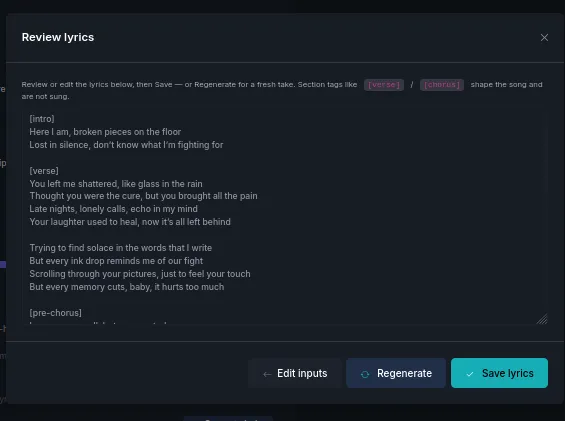
Read the draft. Edit anything you want to change, press Regenerate for a fresh take, or go Edit inputs to change the brief. When you are happy, press Save lyrics.
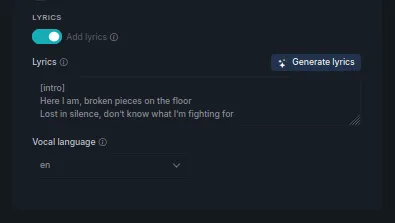
The saved lyrics drop into the Lyrics box, ready to generate with.
Section tags
Section titled “Section tags”Tags like [intro], [verse], [pre-chorus] and [chorus] mark the structure of the song.
They shape how the track is arranged — they are not sung. Keep them, move them, or add
your own to change where sections fall.
Choose the vocal language
Section titled “Choose the vocal language”Vocal language sets the language the vocal is sung in. Set it to match the language your lyrics are written in.
What to expect
Section titled “What to expect”Next steps
Section titled “Next steps”- Creating music — the rest of the brief: style, duration, takes.
- Remix a track — Morph can add vocals to music you have already made.
- Separate stems — split an existing track into vocals and instruments.