
Video Editor (Studio) overview
The Video Editor (Studio) is the full manual editor — a timeline where you add and arrange every element yourself: avatar scenes, location maps, images, parallax shots, text, and audio. Use it to build a video from scratch, or to fine-tune one made with Quick Video.
Open a video from Videos → Edit, or press Open in Editor from Quick Video.
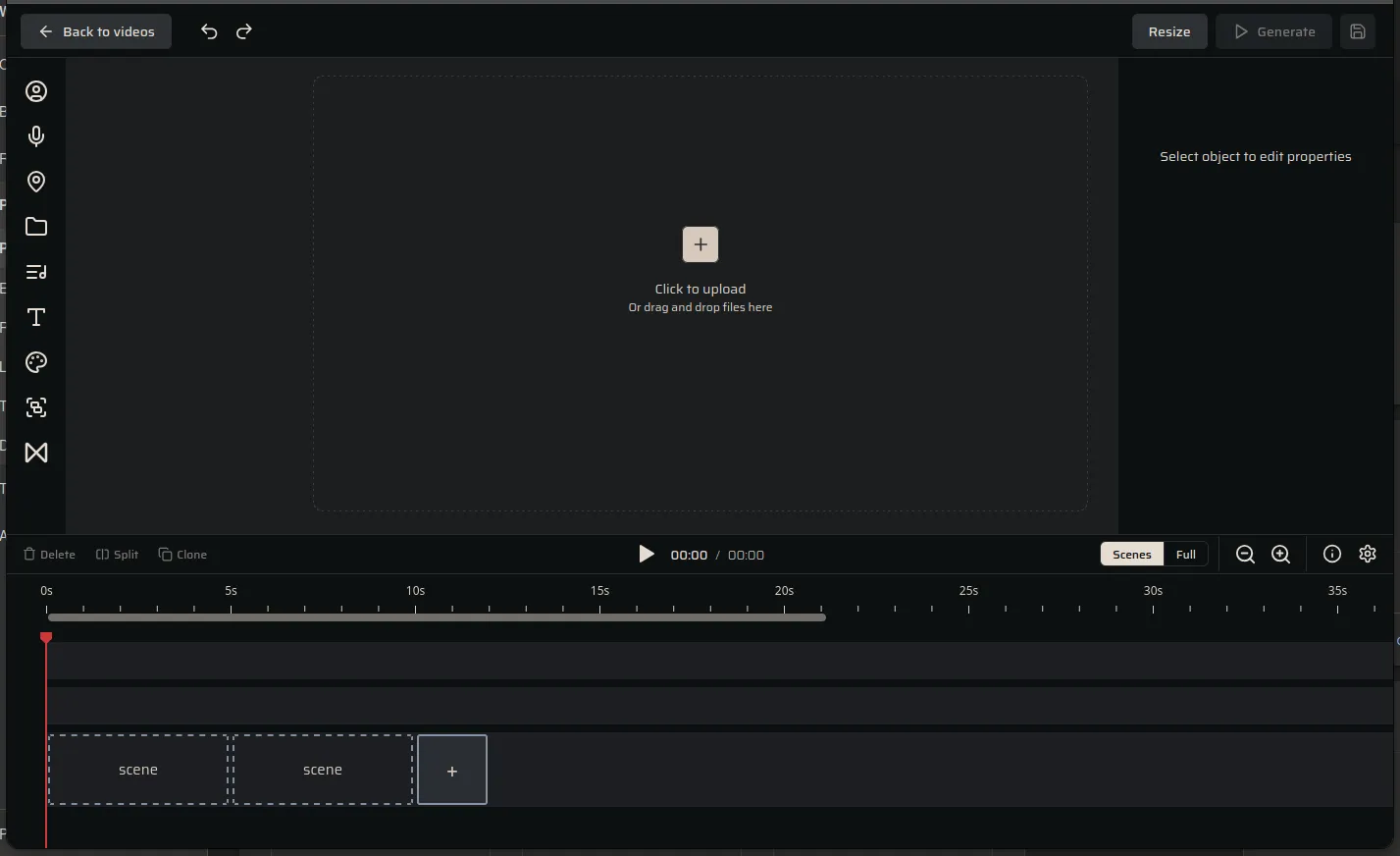
The layout
Section titled “The layout”- Left tool rail — add elements to the current scene: avatar, voiceover, location (geo), media, music, text, background, and transitions.
- Preview canvas — what the scene looks like; select any element to edit it.
- Right properties panel — settings for the selected element (or “Select object to edit properties” when nothing is selected).
- Timeline — your scenes over time. Toggle Scenes (per-scene) or Full (all tracks); Play to preview.
- Top bar — Resize (orientation), Save, and Generate.
Work with elements
Section titled “Work with elements”- Select an element to edit it; drag to move; drag its edges to change duration.
- Delete / Split / Clone the selected item from the timeline toolbar.
In this section
Section titled “In this section”- Scenes vs Full modes — the two timeline views and when to use each.
- Elements & scene types — every element you can add and its settings.
- Positioning & layering — arrange, stack, and picture-in-picture.
- Avatars — add a talking presenter to a scene.
- Geo scenes — add an animated location map.
- Images — add photos as stills or 3D parallax shots.
- Grouping elements — treat several elements as one.
- Link a visual to a voiceover — keep picture and voice in sync.
- General settings — timing, transitions, text, audio, orientation, and saving.
Common how-tos
Section titled “Common how-tos”- Put an avatar in a corner over an image or video
- Use a transparent-background avatar in a scene
- Keep a photo on screen as long as its narration
Save vs. edit-as-new
Section titled “Save vs. edit-as-new”- Generate applies your edits and produces the updated video.
- Edit as new keeps the original and creates a separate, edited copy.
Your original is never lost — edits always produce a new render you can download.