
Creating music
Describe the music you want and Roxybit writes it for you. Every track is original and yours to use in your videos, so there is nothing to license and nothing to clear.
Before you start
Section titled “Before you start”- Credits on your account — see Music pricing.
- A rough idea of the mood, genre and tempo you want. One sentence is enough to start.
-
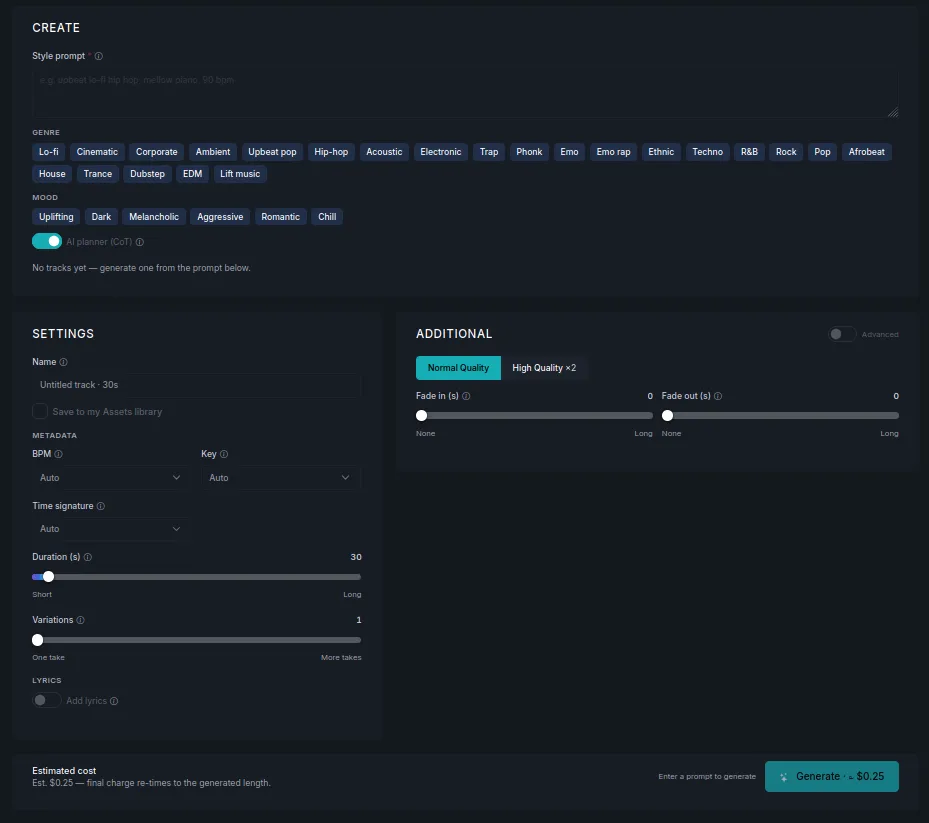
Open Music → Create.
-
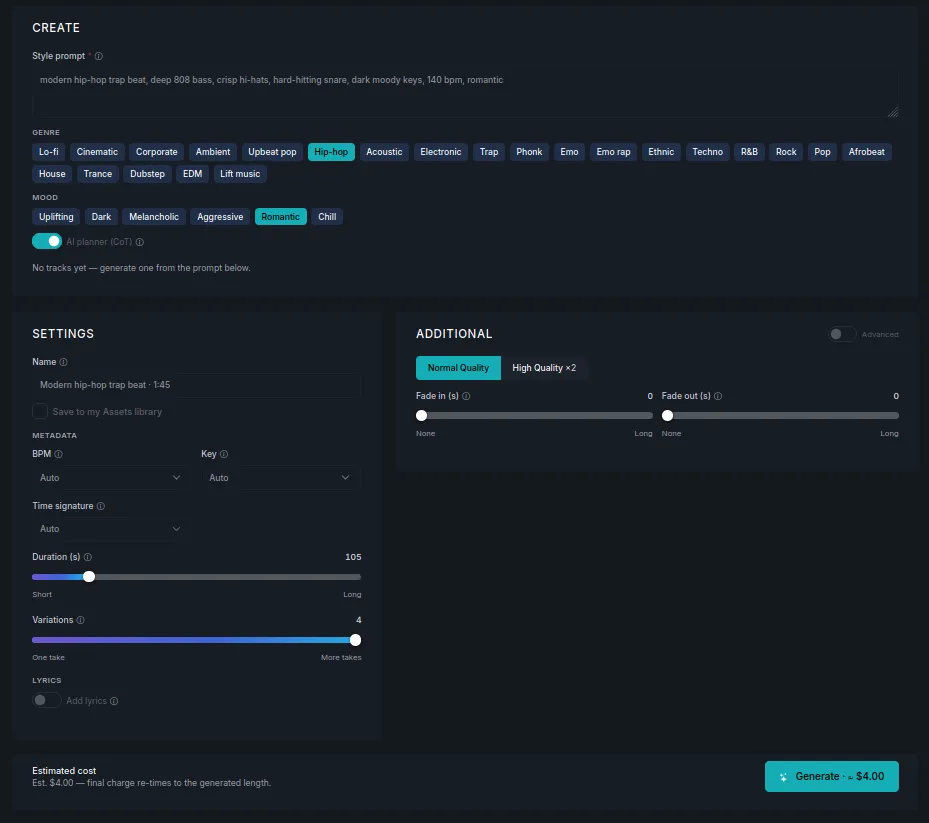
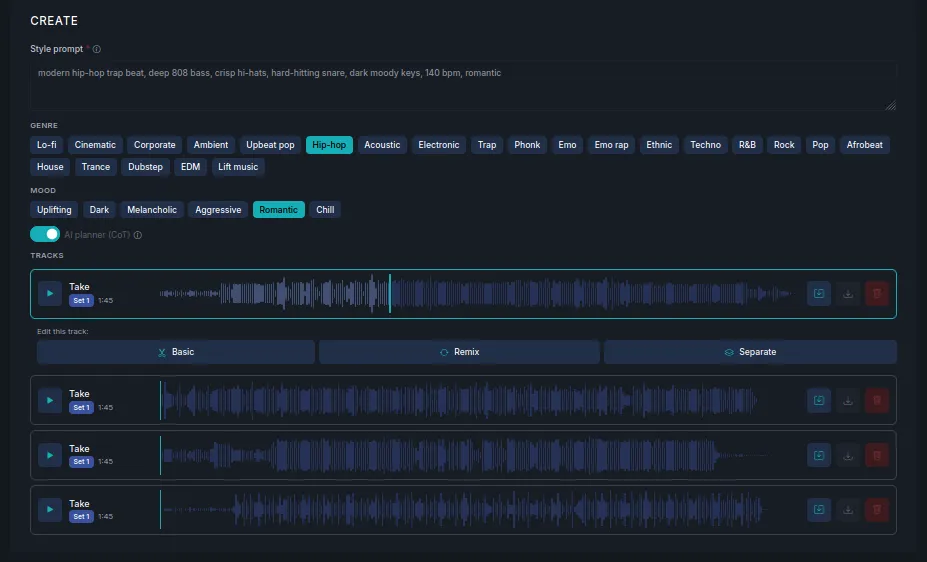
Write a Style prompt. Describe the sound the way you would to a musician — instruments, energy, tempo. For example: modern hip-hop trap beat, deep 808 bass, crisp hi-hats, hard-hitting snare, dark moody keys, 140 bpm, romantic.
-
Optionally tap a Genre and a Mood chip to steer the style. Chips work with your prompt rather than replacing it, so you can be specific in words and still nudge the feel.
-
Set Duration (s) and Variations. Variations are alternative takes of the same brief — more takes means more to choose from, and a proportionally higher cost.
-
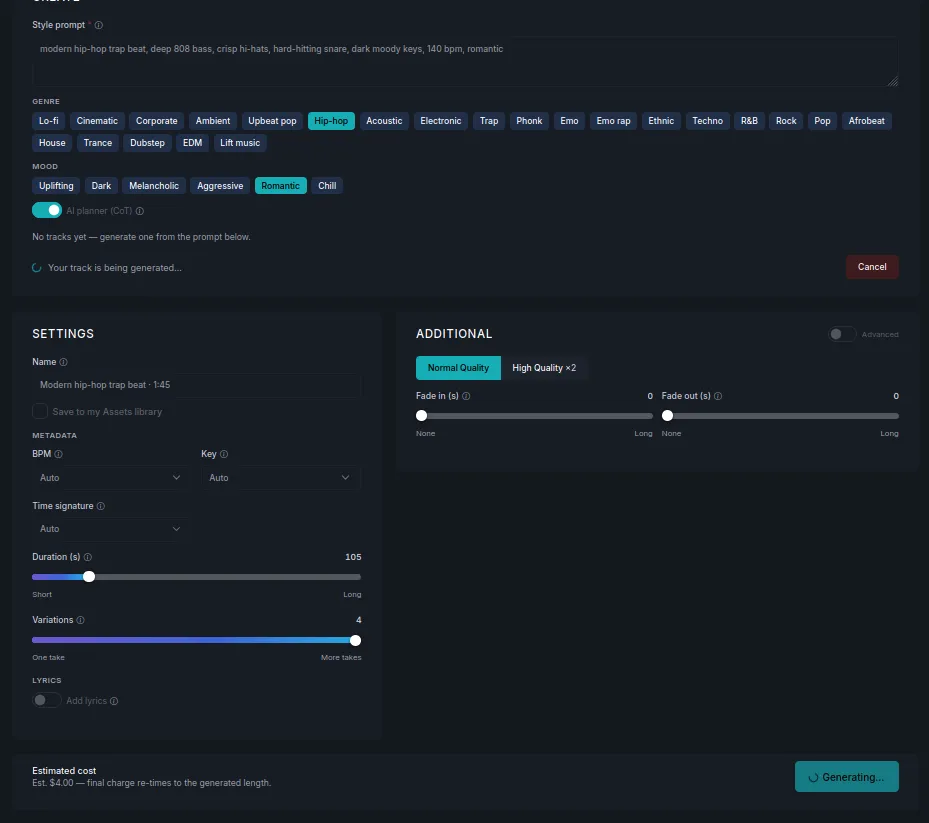
Check the estimated cost, then press Generate.
What you’ll see
Section titled “What you’ll see”Each take appears under Tracks with its own waveform and length. Press play to audition them, then keep the one you want.
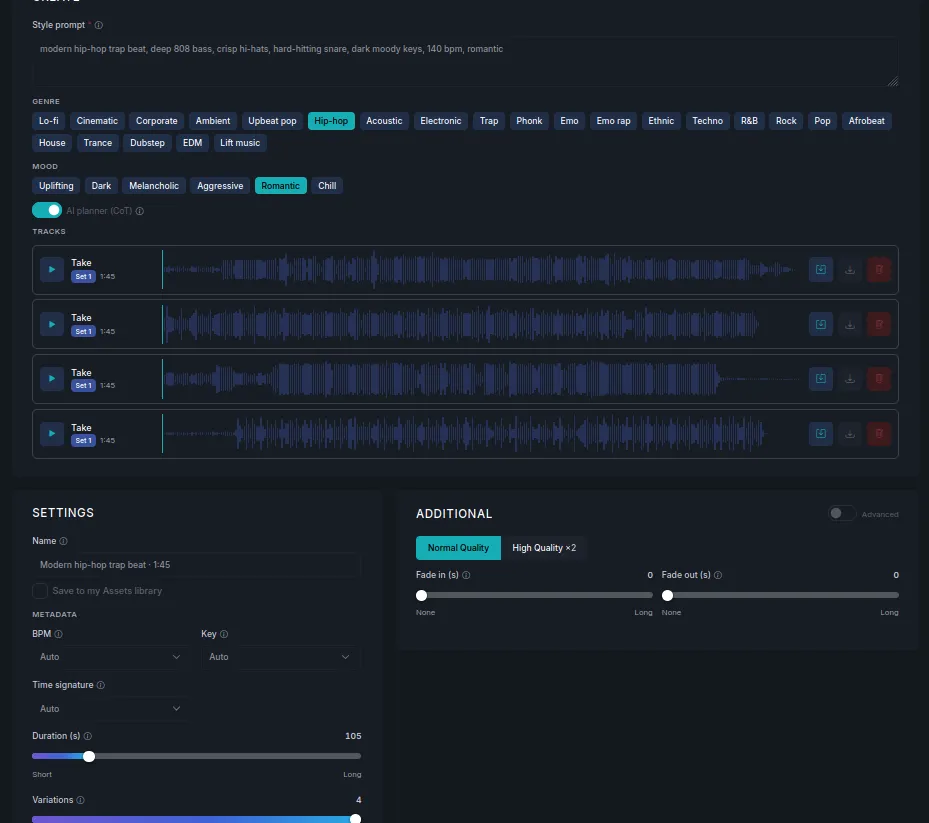
Every row has download and delete. Tick Save to my Assets library in Settings before generating — or save a take afterwards — to keep it in your Assets for reuse across videos.
Select a take and an Edit this track bar appears beneath it, with Basic, Remix and Separate.
Settings worth knowing
Section titled “Settings worth knowing”| Setting | What it does |
|---|---|
| Name | Names the track. Fills in from your prompt if you leave it. |
| BPM, Key, Time signature | Pin the tempo, key or metre. Leave on Auto unless the track has to match something. |
| Duration (s) | Target length. |
| Variations | How many takes to generate from the same brief. |
| AI planner (CoT) | Plans the arrangement before writing. Leave it on for structured, song-like results. |
| Normal Quality / High Quality ×2 | Higher quality costs twice as much and takes longer. Use it for a final track, not for auditioning ideas. |
| Fade in (s) / Fade out (s) | Eases the track in or out — useful when it sits under a voiceover. |
Add sung lyrics
Section titled “Add sung lyrics”Turn on Add lyrics in Settings to write or generate words for the track. See Lyrics.
Next steps
Section titled “Next steps”- Editing a track — trim, remix, or split a take into stems.
- Music library — ready-made tracks if you would rather not generate one.
- Music pricing — how length, variations and quality affect the cost.