
Separate stems
Separate splits a finished track into stems: the individual parts that make it up. No prompt, no regeneration — it takes the audio apart and hands you the pieces.
Before you start
Section titled “Before you start”- A generated take. Select it under Tracks, then press Separate.
Split the track
Section titled “Split the track”Choose what to split into under Split into — for example Drums / Bass / Vocals / Other — then generate.
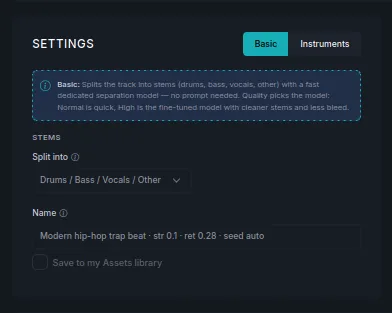
Basic covers the common split and needs no prompt. Instruments separates by instrument when you need finer parts.
Each stem comes back as its own track, so you can play, download or save them independently.
Quality
Section titled “Quality”The Quality setting decides how cleanly the parts come apart. Normal Quality is quick; High Quality ×2 takes longer and leaves less of one part bleeding into another. If you can hear a trace of the vocal in the instrumental, run the split again at high quality.
What people use it for
Section titled “What people use it for”- Keep the instrumental. Split a sung track and use everything except the vocal as background music — the usual fix when vocals compete with a voiceover.
- Rebalance. Drop one part and use the rest.
- Reuse a part. Take just the drums under a different section of your video.
Save the result
Section titled “Save the result”Name the result and tick Save to my Assets library to keep the stems in your Assets. The original take is unchanged.
Next steps
Section titled “Next steps”- Basic edits — trim and fade a stem to fit your video.
- Remix a track — restyle rather than split.
- Editing a track — how the three edit modes compare.