
Geo (location) scenes
A geo scene is an animated map / location clip built from an address — an aerial fly-over that highlights nearby landmarks. Use it on its own as a quick “where it is” intro, or as a scene inside a larger video.
Before you start
Section titled “Before you start”- The property address (or you can drop a pin on the map).
- Enough credits / an active plan — the cost is shown before you generate. See Video pricing.
The geo editor
Section titled “The geo editor”The same editor opens whether you create a standalone clip or add a geo scene inside Quick Video. It has two tabs: Script and Voice.
Script tab
Section titled “Script tab”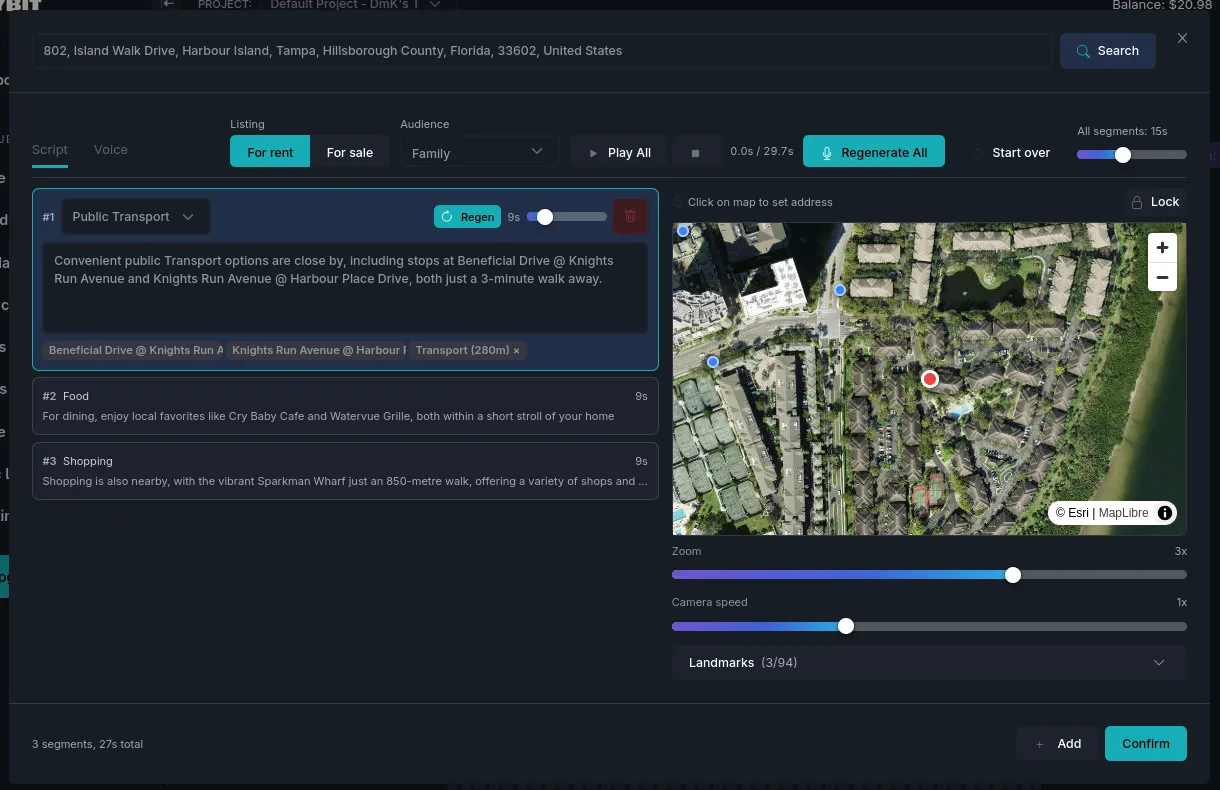
- Address bar + Search — set the location; you can also click on the map to move the pin.
- Listing (For rent / For sale) and Audience — tailor what the narration emphasises.
- Segments (e.g. Public Transport, Food, Shopping) — each is a short narrated beat. Edit its text, pick a category, set its length, Regen one, or ✕ remove a landmark chip. Regenerate All rewrites every segment.
- Map controls — Zoom and Camera speed set how the fly-over moves; Landmarks (n/N) chooses which nearby points to feature. Lock freezes the current framing.
- Play All previews the timing; All segments shows total length.
Voice tab
Section titled “Voice tab”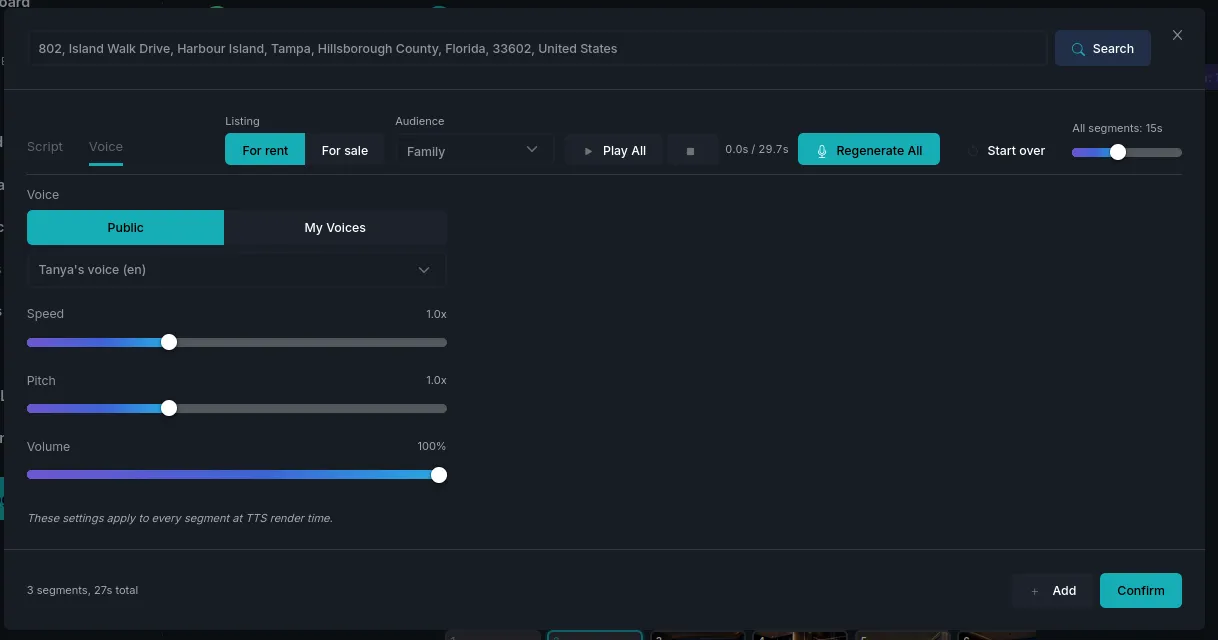
- Public / My Voices + the voice dropdown — choose who narrates. See Voices.
- Speed, Pitch, Volume — apply to every segment at render time.
When it’s set, press Confirm (in a scene) or Generate (standalone).
What you’ll see
Section titled “What you’ll see”The finished clip appears under Videos to preview or download.
Next steps
Section titled “Next steps”- Quick Video — add a geo scene inside a full property video.
- Video editor — adjust a geo scene alongside your other scenes.
- Video pricing — how geo cost is calculated.